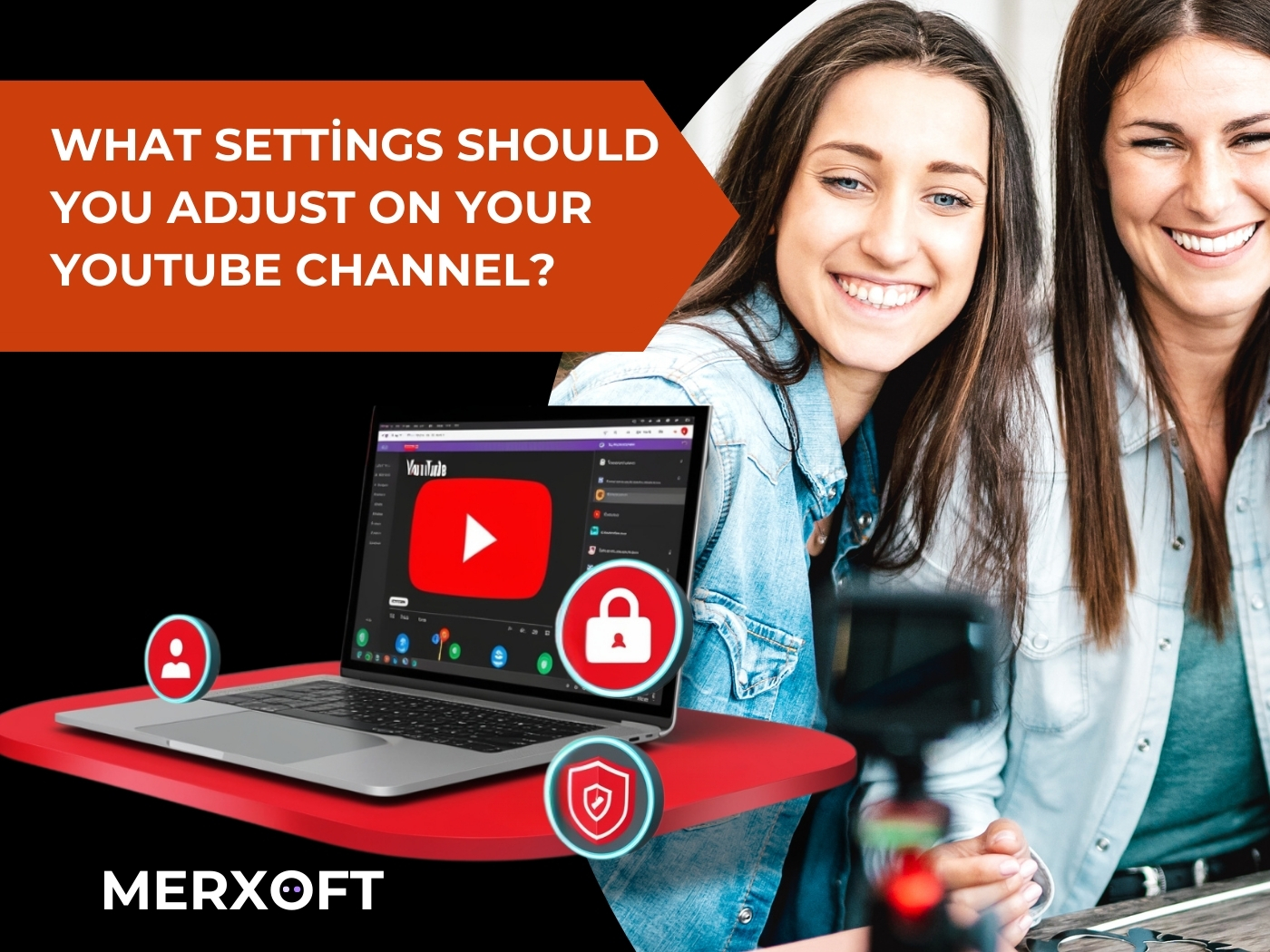
Starting and growing a YouTube channel is an exciting journey. However, to successfully manage your channel, strategic adjustments are essential. At Merxoft, we’re here to guide you with expert insights. Follow these tips to optimize your channel and achieve success:
Adjust Your YouTube Audience Settings
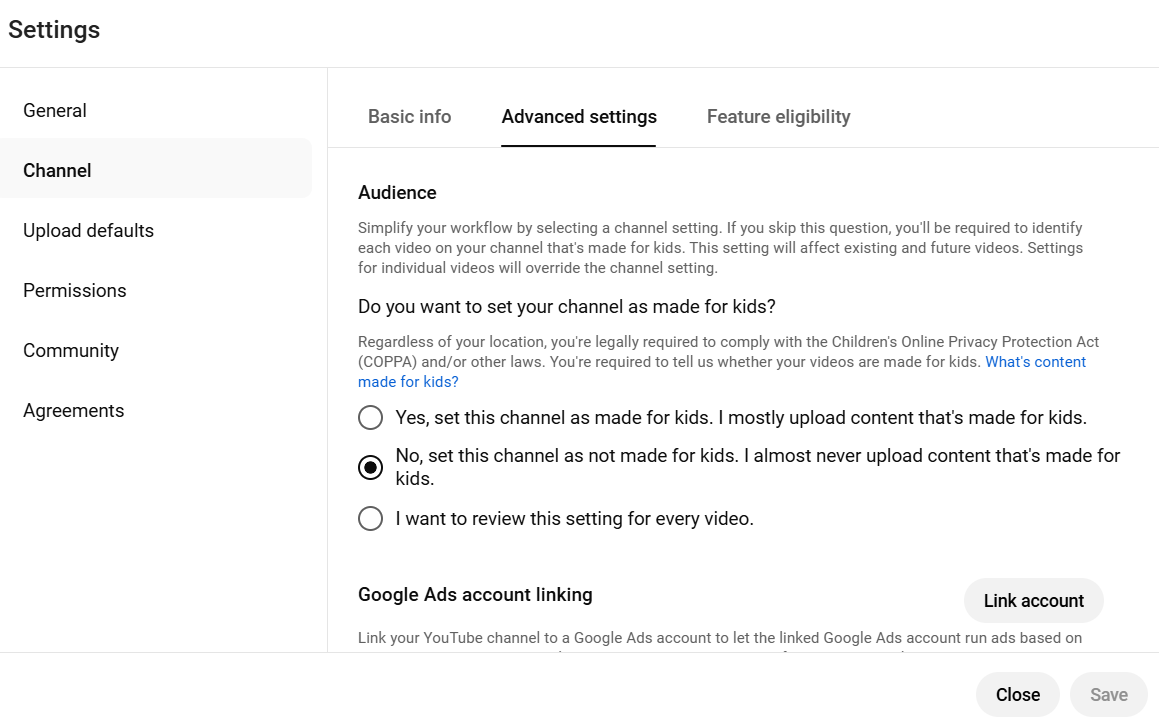
Navigate to ‘YouTube Studio > Settings > Channel > Advanced Settings.’ If your content is not child-specific, select ‘No, don’t set this channel as child-specific.’ If you produce content for children, choose ‘Yes, set this channel to kids.’ Additionally, leave ‘Disable interest-based ads’ unchecked if monetizing your channel, ensuring it remains enabled for revenue generation.
Review Your YouTube Videos Before Publishing
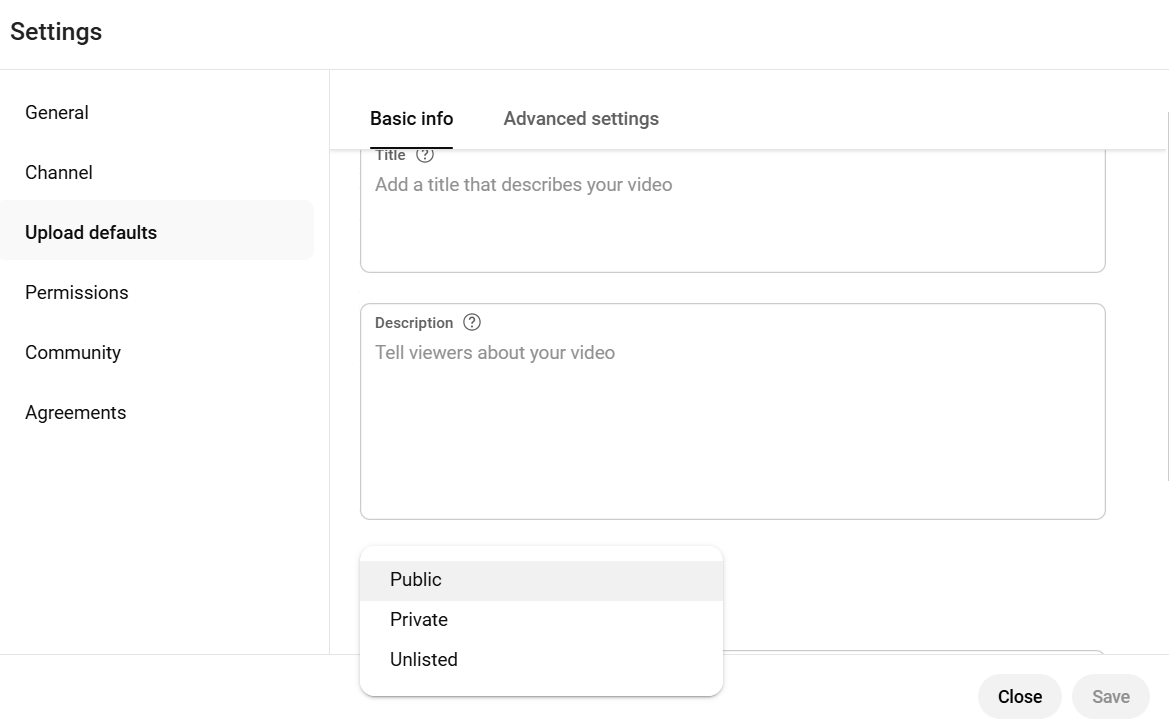
Go to ‘YouTube Studio > Settings > Upload Defaults > Basics info’ and set video visibility to private by default. This allows you to finalize all details before making your videos publicly available.
Add Keywords to Your Channel
In ‘YouTube Studio > Settings > Channel > Basic Info,’ add keywords that align with your content and audience. For example, a recipe channel might use keywords like ‘easy recipes’ or ‘healthy meals.’ These keywords help YouTube’s algorithm connect your channel with the right viewers.
Add a “Video Watermark” to Your YouTube Videos
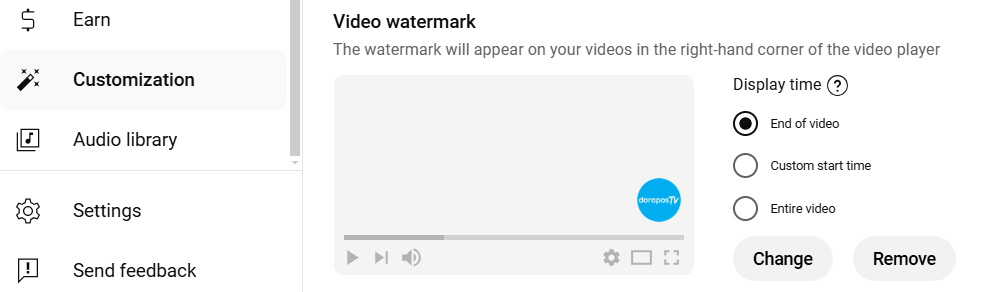
Under ‘Customization > Profile,’ upload a PNG image as a video watermark. This encourages viewers to subscribe while watching your content. Choose when the watermark appears, such as at the end, during a custom timeframe, or throughout the entire video.
Redirect to Your Related Videos
In ‘YouTube Studio > Content,’ select a video and use the ‘Cards’ option to add links to related videos, playlists, or channels. This keeps viewers engaged and increases the time they spend on your channel.
Customize Your Channel’s Appearance
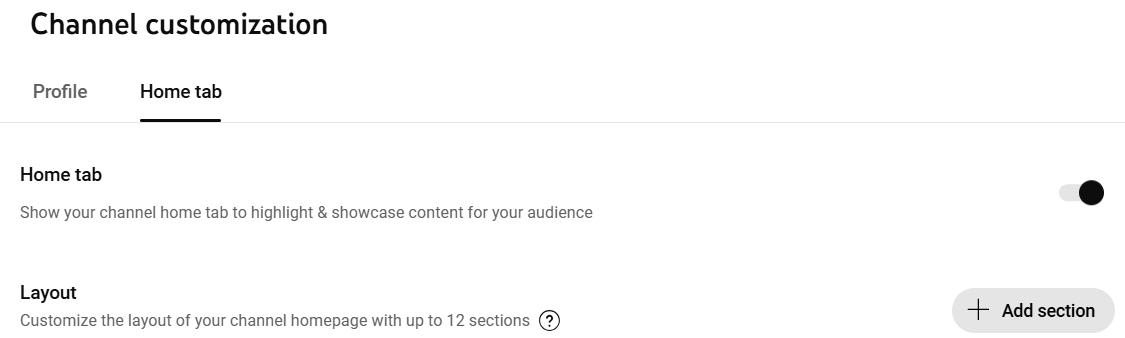
Customize your homepage under ‘Customization > Layout.’ Add featured videos and playlists to make your channel more appealing. Use the ‘Featured Video for Returning Subscribers’ option to tailor content for repeat visitors.
Test Your Cover Images and Identify Your YouTube Cover Image
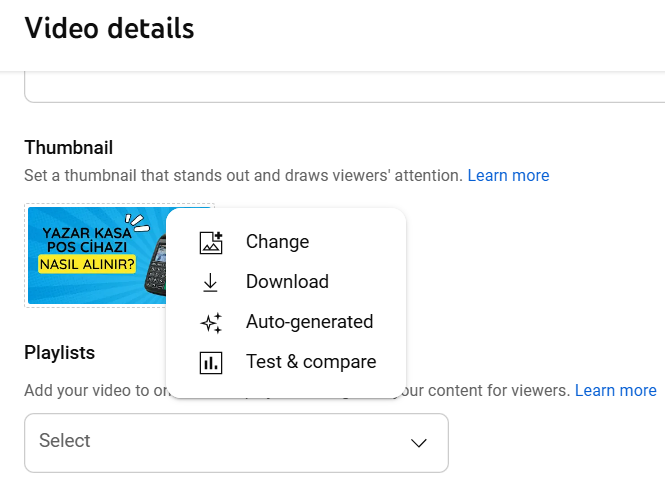
In ‘YouTube Studio > Content,’ select a video and test different cover images to determine which ones attract more clicks. This A/B testing helps you identify the most engaging thumbnails.
Add End Screen to Your YouTube Video
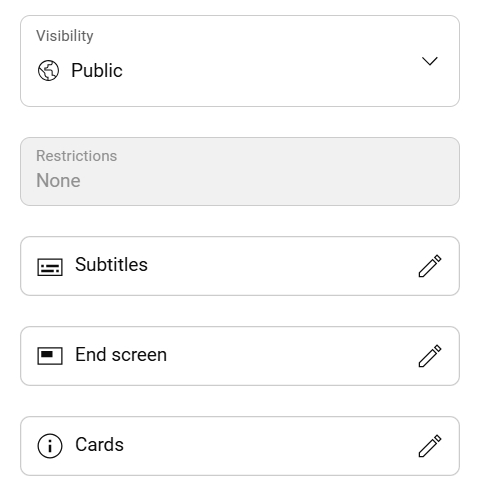
Use the ‘End Screen’ option in ‘YouTube Studio > Content’ to guide viewers to additional videos or playlists. This boosts overall watch time and keeps your audience engaged.
Ensure Channel Security
Enable 2-Step Verification under your Google Account’s Security tab to protect your channel from unauthorized access. This adds an extra layer of security to your account.
You can contact us for your questions.